
The TngApi plugin for WordPress.
Latest release is V3.3.3A (Here) with Security update.
- Security Update
- Jquery version jquery-1.10.2.min.js replaced with jquery-3.5.0.min.js in /js folder
- Coy of current 3.5.0 version is jquery-current.min.js in /js folder
- Modified familyuser.html.php and submit_images.html.htp to use jquery-current.min.js.
- Deleted js/jquery-1.10.2.min.js
This release is suitable for TNG versions, upto 13. It will work in TNG 11, 12 and 13. Please note that I will not be supporting Auto update of changes submitted by users. I recommend manual updates by the administrator using the notification email generated.
This is a stand-alone plugin, developed by Neel and Mahesh Upadhyaya, integrates smoothly with TNG to display genealogy data in WordPress pages.
You may download the latest release of the plugin Here.
[tabs style=”1″]
[ tab title=”Objectives” ]
To provide a seamless access to Genealogy database from within WordPress.
- Put all relevant USER data in the front end and make it easily available.
- Use TNG App as reference for detailed view of all genealogy data.
- Allow user to submit changes for person, parents, spouse(s) and children
- Allow administrator to approve/modify/change each submit.
- Make user-linked media, e.g. photos and documents, in genealogy, available in front end.
- Allow user to upload profile Photo (Default Image) from the Individual’s page
- Allow user to upload photos from dedicated upload page
- Cater for multi trees
- Respect Privacy flag
- Work on 2 Minute rule. User should see all relevent data in first 2 minutes.
[/tab]
[tab title=”Requirements”]
Requirements
- PHP 5.3 or greater
- WordPress 3.8 or greater
- TNG V10 or better
- TNG installation in one directory below the base.
- Same user names in WordPress and TNG
- User has logged in.
[/tab]
[tab title=”Short codes”]
Shortcodes
There are a number of useful shortcodes for you to play with. You can find them all in the plug-in>upavadi>shortcodes directory.
| 1 | [[upavadi_pages_familysearch]] | Shortcode used on a page to display results of Name-Search Widget. |
| 2 | [[upavadi_pages_familyuser]] | Family page for Person |
| 3 | [[upavadi_pages_familyform]] | Update details of Person’s Family |
| 4 | [[upavadi_pages_addfamilyform]] | Add Details of Spouse, children and notes |
| 5 | [[upavadi_pages_personnotes]] | Add Notes for Person |
| 6 | [[upavadi_pages_birthdays]] | Birthdays Report |
| 7 | [[upavadi_pages_manniversaries]] | Marriage Anniversaries Report |
| 8 | [[upavadi_pages_danniversaries]] | Death Anniversaries Report |
| 9 | [[upavadi_pages_submit-image]] | Upload Image |
| 10 | [[upavadi_pages_userfamilysheet]] | Display Pending Submissions submitted by the logged in user. |
Custom Shortcodes
You may create your own shortcodes using my Shortcode Constructor Plug-in
[/tab]
[tab title=”Getting Started”]
Installation
TngApi Version 3.0 may be downloaded here
This plugin assumes that:
- Your TNG installation is in the directory below the base of your site (i.e. something like http://mywordpresssite.com/tng).
- User has logged in to WordPress
- User names are same in WordPress and TNG
Set-up
Navigate to
Wordpress Admin panel> settings>TngApi.
Here you’ll need to specify:
- Notification Email address:
- TNG Path: The location of your TNG installation as it is on disk (i.e. /path/to/tng)
- TNG Integration Path: If you would like to show links to TNG in Family page, enter the location of TNG directory here. Leave blank to hide the links.( such as tng or genealogy)
- TNG Collection ID for Photo Uploads: Before you enter this, refer to the section on Image Upload, below
- TNG Event to Track: If you would like to track a customized field or event, you may create this as a special event type (TNG Admin> Custom Event Types > Add New) or use an existing one.
Select this event in the drop down list. This feature may be turned off by selecting ‘Do not Track’ - Your Database connection settings:
- Host Name
- User Name
- Password
- Database Name
- Deactivation: The plug-in creates some temporary tables in the WordPress database to store user submitted changes. On Deactivation, there is an option to either
- Do not Remove. Keep user data for future, or
- Remove User Submitted data
The default is Do not remove.
Select Remove User Submitted data if you are upgrading or permanently removing TngApi plug-in.
[/tab]
[tab title=”Add Pages”]
WordPress Pages for Placing Shortcodes
| 1 | search | to enable search widget, Family Search to display data. Page can also be used for search | Required for the widget |
| 2 | family | Family Page is for the plugin. | Required |
| 3 | thank-you | Submission Acknowledge Page. Displays Thank you message and details of changes submitted by the user | Required |
| 4 | events | An events page to display reports of birthdays, anniversaries and death anniversaries for the month. I have named this page, events. | Optional |
| 5 | images | An image upload page. Give it an appropriate name. | Optional |
Create Family Page
Create a wordpress page and name it family.
There are 4 ( or 5 ) shortcodes which form the body of this page.
The plugin uses http://yoursite/family/ to navigate to various pages. I use tab-shortcode (included) to place the 4 (or 5) family templates on the page.
Advantage of placing these shortcodes is that all 4 shortcodes are synchronized to the same personID.
Add These Shortcodes to the Family Page
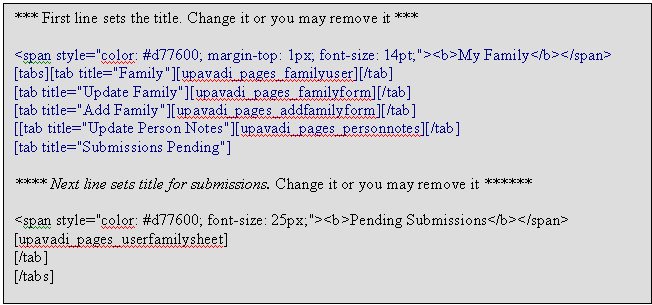
( WordPress would not allow me to put the code here, hence the image. You can copy – paste this from the pdf file here )
You would also have to create a page, named thank-you, add shortcode [[upavadi_pages_userfamilysheet]] , that acknowledges User Submissions. Once the User has submitted changes, a thank-you page is displayed which will show changes
User Submissions are saved in temporary WordPress tables. Administrator can view each submission, approve and then transfer the changes to the TNG database.
WordPress>admin>TNG Submits>Pending Submissions displays number of outstanding submits.
Pending submissions gives a list of submissions with User name, affected person and date of submission.
Once you have checked the submission, you may Save Accepted Changes.
Save Accepted Changes will transfer your selected changes to the TNG database. Your submission page should update to reflect the updated values.
Once you are happy with the change, you can click on Discard Submission to delete the user submission.
Event Reports
There are 3 reports which can be placed in a WordPress page.
If you would like to display these reports, create a page for the templates.
There are three shortcodes for Birthdays, Marriage Anniversaries and Death Anniversaries.
Each shortcode has Month and year selector. By placing these shortcodes in one page, month selection would apply to all 3 templates.
- [[upavadi_pages__birthdays]] Birthdays
- [[upavadi_pages__manniversaries]] Marriage Anniversaries
- [[upavadi_pages__danniversaries]] Death Anniversaries Report
Above reports use Person hyperlinks to the ‘Family’ page.
Upload Photos
User images are uploaded in to one of TNG folders with the collection name specified by you in the admin set up.
To set this up,
enter the name for the collection in
settings >TngApi > TNG Collection ID for Photo Uploads.
Mine is called “My Uploads”.
In TNG admin, go to media and create a collection with same name.
You will find more details about setting this up in pdf file Here
Search Widget
To be able to use this widget, create a page named ‘search’
and place the shortcode
[[upavadi_pages_familysearch]]
in the page.
Search widget, Family Search, uses this page to display Search results. You may also include search as a menu item
I look forward to your comments.
Mahesh Upadhyaya
[/tab]
[/tabs]